How to Book
Quick steps for booking your tickets online when there's a queue
Getting ready to book tickets with us? We've listed below, step-by-step, the actions you need to take to snag a seat for your favourite events.
1. Register for an account at edbookfest.co.uk
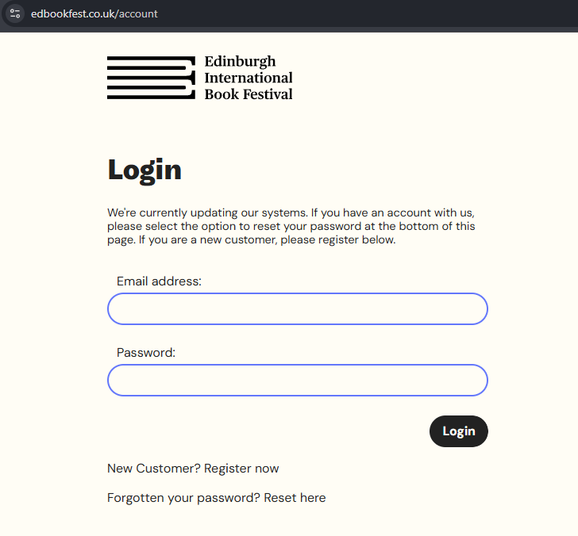
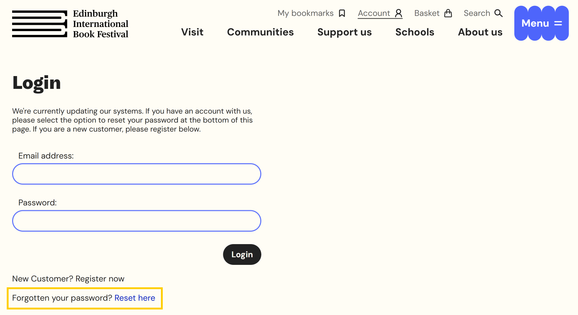
2. Already have an account? Make sure you know your password and log in - use 'Forgot password' if unsure and you'll be sent an email with a link to reset your password. You can read our help guide here.
- We recently updated our systems, so if you haven't changed your password recently you will need to do so before booking tickets
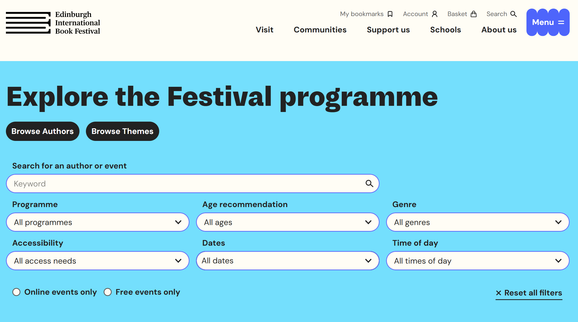
3. Make sure you are logged in and then visit our Events page to browse our programme.
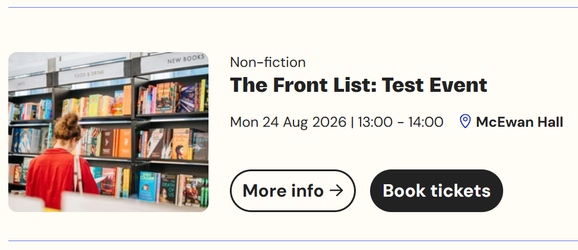
4. Select ‘More Info’ on any event to find out more. Or hit ‘Book tickets’ to go straight to the seating plan to select your tickets
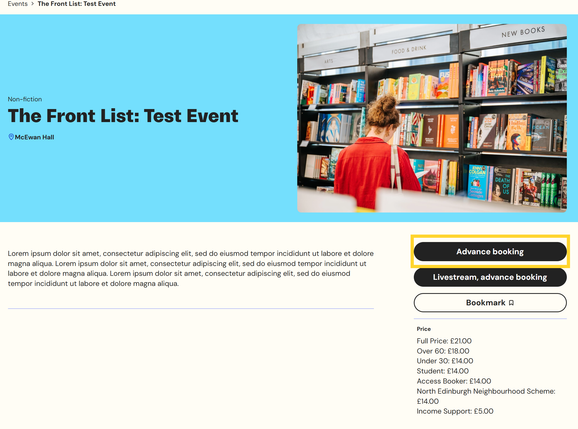
5.1 We are running Advance Booking for members
- Members must be logged in to be able to book tickets online
- Members: Select 'Advance booking' on the individual event page to access our seating plan and add tickets to your basket.
- Booking opens for Benefactors Wed 17 June at 10:00
- Booking opens for Champions Fri 19 June at 10:00
- Booking opens for Friends Plus Mon 22 June at 10:00
- Booking opens for Friends Tue 23 June at 10:00
- Booking opens for the public on Thu 25 June at 10:00
All times above are BST
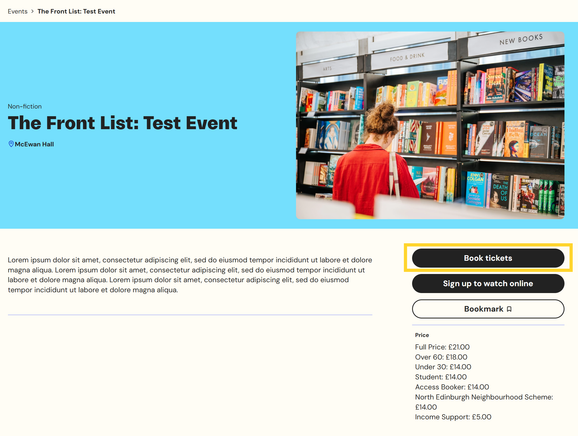
6. For general public on sale there will be a queue operating on our website
Public booking: To be entered into the queue, visit an event page you would like to book tickets for and select 'Book tickets' and you will automatically be entered into the queue.
- Please stay on the page and monitor your place in the queue. If you leave the queue page you will lose your place and will have to start again on an event page
- Once you have reached the front of the queue you have 10 minutes to begin your booking. Baskets will timeout after 10 minutes of inactivity. If your backet times out, you'll be returned to the queue.
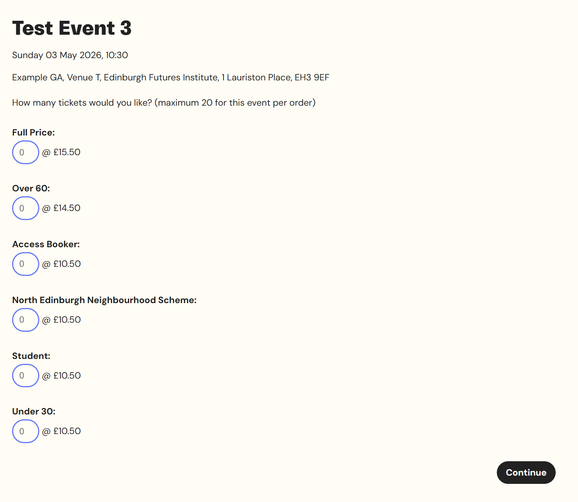
7. When you reach the front of the queue you will be able to select how many tickets of each price type you would like.
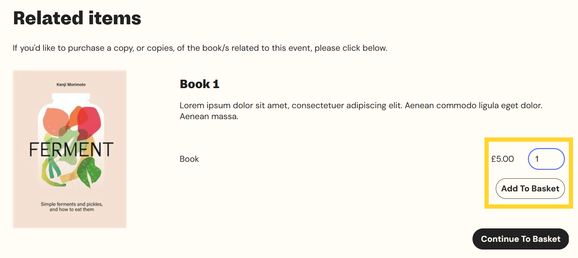
8. You may be asked if you would like to buy a book with your ticket purchase for some events, if there is one available.
- Enter the number of books you would like and then make sure to click 'Add to basket'
- Then select 'Continue to basket'
- If you don’t want to add a book, select ‘Continue to basket’, without selecting ‘Add to basket’
9. Confirm your basket is correct or select 'Continue Browsing' to return to our events listings to add more events to your basket
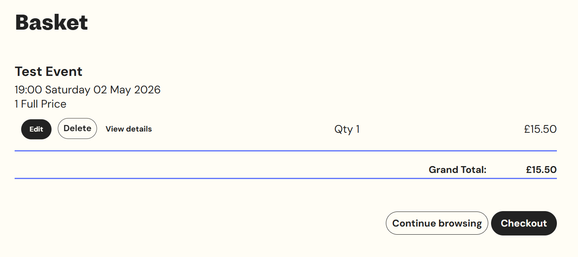
10. Once you are happy with your order select 'Checkout'
11. Enter and/or confirm your Personal Details in the Checkout
- Baskets will timeout after 10 minutes of inactivity. If you don't complete and pay for your order within 10 minutes of adding your final ticket, you will be added back into the queue
- You must complete your transaction on the same device. If you change device you will lose your basket
12. Review your Order Summary and check that you agree to our terms and conditions
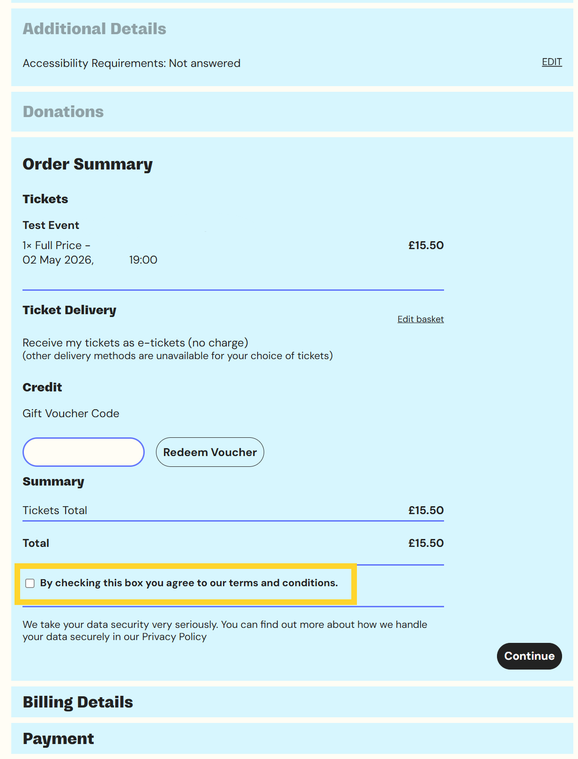
13. Enter your Billing address and Payment details
14. You will receive your order confirmation and tickets by email:
- An order confirmation will come from confirmation@boxoffice.edbookfest.co.uk
- You will receive one email for each event you’ve booked, containing the tickets for that event. This will be sent from Edinburgh International Book Festival tickets@edbookfest.co.uk
- These tickets can be added to an Apple or Google Wallet if you choose
15. You can also see your orders and tickets by logging in to your edbookfest.co.uk account here
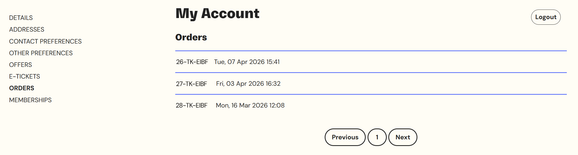
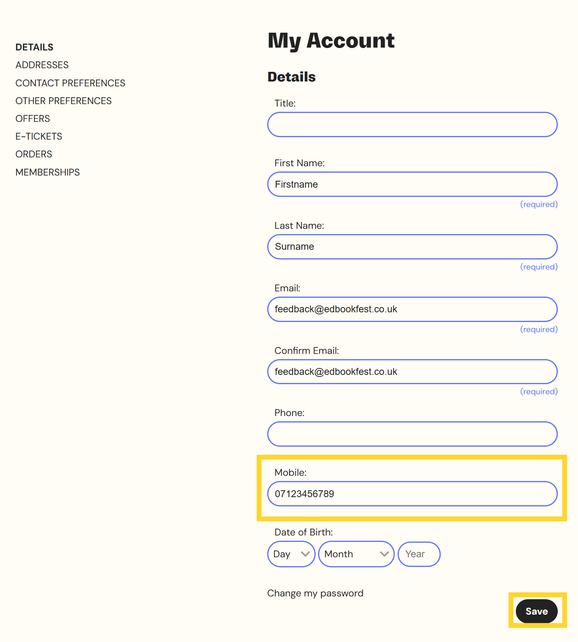
16. To save digging in your inbox, if we have your mobile number, you will be sent a text message containing a link to your tickets 24 hours before your event. Otherwise, you’ll receive an email containing a link to your tickets 24 hour before your event.
- To add a mobile number to your account, login to our website and visit My Account. Under the ‘Details’ tab you can add a Mobile number and click ‘Save’ at the bottom of the page.